[Published: May 12, 2025 | Last updated: May 12, 2025] | 8 min read
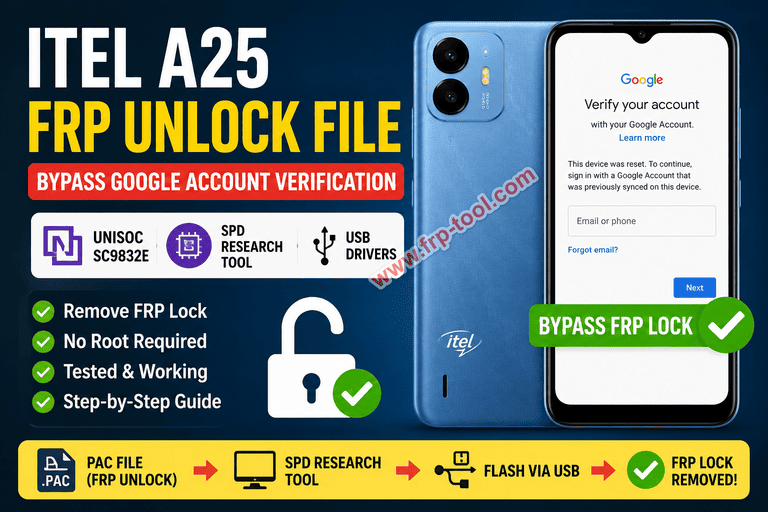
- The Itel A25 FRP unlock file is a firmware tool used to bypass the Google account verification screen after a factory reset.
- The Itel A25 runs on a Unisoc Spreadtrum SC9832E chipset – this determines which flash tool and file format you need.
- This guide uses SPD Research Tool (also called SPRD Upgrade Tool), the correct utility for Unisoc/Spreadtrum devices.
- You need a Windows PC, a USB cable, and the Unisoc USB drivers installed before starting.
- The full process takes 15-30 minutes and does not require root access.
Download: Itel A25 FRP Unlock File
What Is an Itel A25 FRP Unlock File and When Do You Need One?
An Itel A25 FRP unlock file is a pre-built firmware package that clears the Factory Reset Protection (FRP) lock on the device. FRP is a Google security feature that activates after a hard reset – it forces the user to verify the previously synced Google account before the phone can be used.
You need this file when you have bought a second-hand Itel A25 without the original Google credentials, forgotten the Gmail account linked to the device, or performed a factory reset and lost access to the account that was active on the phone.
The Itel A25 runs on a Unisoc Spreadtrum SC9832E processor (32nm). This means the unlock process uses SPD Research Tool – the standard flashing utility for all Unisoc and Spreadtrum-based Android devices. SP Flash Tool, which is for MediaTek devices, will not work here.
What You Need Before You Start
- A Windows PC (Windows 7, 8, 10, or 11)
- A USB data cable – not a charge-only cable
- The Itel A25 FRP unlock file (Unisoc SC9832E-compatible PAC file)
- SPD Research Tool (also listed as SPRD Upgrade Tool) – v19 or later recommended
- Unisoc USB drivers installed on your PC
- Device battery charged to at least 50%
- USB Debugging does not need to be enabled for this method
Step 1: Download the Itel A25 FRP Unlock File and Required Tools
Download three things before touching the phone:
- Itel A25 FRP unlock file – The file format for Unisoc devices is .PAC, not a ZIP with a scatter file. Confirm your exact model number first: go to Settings > About Phone > Model Number. The Itel A25 is commonly listed as model W5001 or a regional variant.
- SPD Research Tool – This is the correct flash utility for Unisoc SC9832E devices. Download v19 or a later stable release from a verified firmware repository.
- Unisoc USB Drivers – Without these, Windows will not recognize the phone in flash mode.
Extract all files to a folder on your desktop. Keep the folder path short and avoid spaces or special characters – SPD Research Tool can fail to load PAC files when the path is too long.
Step 2: Install the Unisoc USB Drivers
Install the drivers before plugging in the phone. Connecting the device first often causes Windows to assign the wrong driver automatically, which breaks detection during flashing.
- Right-click the driver installer and select Run as Administrator
- Complete the installation prompts and restart your PC when asked
- After restarting, open Device Manager
- Connect the powered-off Itel A25 via USB while holding Volume Down
- Confirm the device appears under “Ports (COM & LPT)” without a yellow warning icon
If a yellow exclamation mark appears, right-click the device entry, select Update Driver, and point Windows manually to the folder containing the Unisoc drivers.
Step 3: Load the FRP PAC File into SPD Research Tool
- Open SPD Research Tool as Administrator (right-click > Run as Administrator)
- Click Load Packet or the folder icon, depending on your version of the tool
- Navigate to the folder containing the Itel A25 FRP unlock file
- Select the .PAC file – this is a single packaged firmware file that contains all partition data for Unisoc devices, unlike the scatter-based format used by MediaTek
- The tool will load the file and display partition information in the main window
Do not change any partition settings unless you have confirmed which partitions need to be written. For FRP-only operations, only the userdata or frp partition needs to be targeted – check the documentation included with your specific PAC file.
Step 4: Flash the FRP Unlock File to the Itel A25
- In SPD Research Tool, click the Start Downloading button
- Power off the Itel A25 completely
- Hold the Volume Down button on the phone, then connect it to the PC via USB while continuing to hold the button
- The tool detects the device automatically and begins writing the FRP file – a progress bar appears at the bottom of the screen
- When the bar completes and a success message appears, the flash is done
- Unplug the USB cable, then power on the phone
The process typically takes 2-10 minutes depending on file size and USB speed. Do not disconnect the cable while the progress bar is active.
Step 5: Complete the FRP Bypass on the Device
After the phone restarts:
- Go through the initial Android setup screens until the Google account verification prompt appears
- The flashed FRP file clears the lock flag stored in the device firmware – tap Next and the phone will move past the verification screen without asking for the old Google account
- Set up the phone with a new Google account or skip account setup entirely
- Go to Settings > Accounts and confirm no old Google account is still listed
If the Google verification screen still appears after flashing, the PAC file did not write to the FRP partition correctly. Repeat Step 3 and confirm the PAC file matches your exact Itel A25 model variant – a mismatched file is the most common reason the lock persists after flashing.
Common Problems and How to Fix Them
| Problem | Likely Cause | Solution |
|---|---|---|
| SPD Research Tool does not detect the phone | Wrong or missing Unisoc USB drivers | Reinstall Unisoc drivers as Administrator, restart PC, try again |
| “Failed to open port” error | Another program is using the COM port | Close other flash tools or phone manager apps and retry |
| Flash completes but FRP lock remains | Wrong PAC file or mismatched model variant | Re-download the PAC file matched to your exact model number |
| Phone stuck on boot logo after flash | Wrong PAC file flashed full ROM data incorrectly | Flash the complete stock ROM PAC file to restore the device |
| SPD Research Tool crashes on PAC file load | File is corrupted or path contains special characters | Re-download the file, move it to a simple path like C:\FRP\ |
| Device not entering flash mode | Volume Down not held long enough during USB connection | Power off fully, hold Volume Down, then plug USB – hold for 5+ seconds |
Frequently Asked Questions About Itel A25 FRP Unlock
What is an FRP unlock file for the Itel A25?
An FRP unlock file is a firmware package in PAC format that clears the Factory Reset Protection flag stored in the Itel A25’s flash memory. When written via SPD Research Tool, it removes the Google account verification screen that appears after a factory reset.
Which chipset does the Itel A25 use and why does it matter?
The Itel A25 uses a Unisoc Spreadtrum SC9832E processor (32nm). This determines which flash tool you need – Unisoc devices use SPD Research Tool and PAC files. MediaTek tools like SP Flash Tool are incompatible and will not detect the device.
Does flashing the FRP file delete my personal data?
The FRP lock only appears after a factory reset, which means user data is already gone by the time you need this file. The FRP flash operation itself targets only the FRP partition and does not wipe additional data.
Can I bypass the FRP lock on the Itel A25 without a PC?
No reliable PC-free method exists for the Itel A25. The Unisoc SC9832E firmware on this phone blocks the setup wizard ADB workaround that works on some older devices. SPD Research Tool on a Windows PC is the confirmed working method.
Is it legal to use an FRP unlock file?
FRP bypass is legal when performed on a device you own or have been authorized to service. Using it to access a phone that belongs to someone else without their permission is illegal under computer fraud and unauthorized access laws in most countries.
What is the difference between flashing an FRP file and doing a factory reset?
A factory reset wipes user data but activates the FRP lock – it does not remove it. Flashing the FRP unlock file removes the lock flag from the firmware directly, which is why a PC-based tool is required.
Summary
- The Itel A25 uses a Unisoc Spreadtrum SC9832E chip – use SPD Research Tool and a PAC file, not SP Flash Tool or scatter files
- Install Unisoc USB drivers first, then open SPD Research Tool as Administrator and load the PAC file
- Click Start Downloading, power off the phone, hold Volume Down, and connect via USB to begin flashing
- After the flash completes and the phone restarts, it will pass the Google verification screen without the old account
- If the lock remains, confirm the PAC file matches your exact Itel A25 model variant and re-flash