Published: May 12, 2026 | Last updated: May 12, 2026] | 8 min read
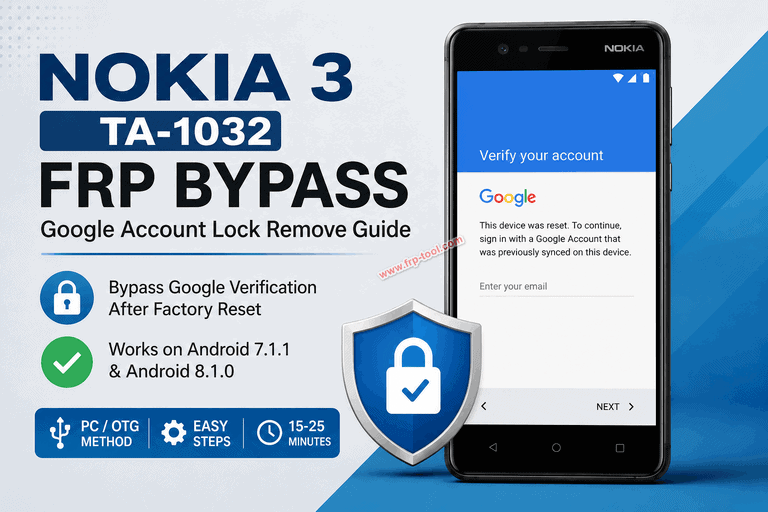
- Nokia 3 TA-1032 FRP bypass removes the Google account lock that appears after a factory reset when you cannot access the previously synced Google account.
- This guide covers the most reliable method using an FRP bypass APK file loaded via a PC or OTG connection.
- You need a Windows PC or OTG adapter, a USB cable, and the Nokia 3 TA-1032 FRP bypass file downloaded before starting.
- The entire process takes 15-25 minutes on average.
- This method works on Android 7.1.1 and Android 8.1.0, the two firmware versions shipped on the TA-1032.
Nokia 3 TA-1032 FRP bypass File Download: Nokia 3 TA-1032 FRP bypass File
Tool download: SP Flash Tool Latest Update
What Is FRP Lock on Nokia 3 TA-1032?
FRP (Factory Reset Protection) is a Google security feature that locks an Android device to the last signed-in Google account after a hard reset. On the Nokia 3 TA-1032, FRP activates automatically when the device is reset without first removing the Google account from Settings. The lock screen asks for the original Google credentials before allowing access to the phone.
This guide is for people who legitimately own a Nokia 3 TA-1032 but have lost access to the Google account that was linked to it – for example, after purchasing a second-hand phone or forgetting account credentials after a reset.
What You Need Before You Start
- Nokia 3 TA-1032 (any color/storage variant)
- Windows PC with USB drivers installed
- USB Type-C cable
- FRP bypass APK file (download from a trusted source such as GSMForum or the Nokia firmware archive)
- OTG adapter + USB flash drive (alternative method if no PC is available)
- Active Wi-Fi connection during the bypass process
- Battery charged to at least 30%
Note: Download the FRP bypass APK file before starting. You cannot access the Play Store or a browser in normal mode during the FRP lock screen.
Step 1: Connect to Wi-Fi on the FRP Lock Screen
On the FRP welcome screen, tap the Wi-Fi setup option and connect the phone to your Wi-Fi network. This step is required because the bypass method uses a browser or settings shortcut that needs an active connection.
If you do not see a Wi-Fi option directly, tap “Emergency Call,” then dial *#*#142#*#* or *#*#0#*#* to open a hidden diagnostic menu. From there, navigate to Wi-Fi settings and connect.
Once connected, return to the main FRP screen and do not tap “Next.”
Step 2: Open a Browser or Settings Access Point
On the FRP screen, tap the “Google Account Sign-in” field. When the keyboard appears, long-press the @ symbol or tap and hold a text area to open the “Share” or “Text Selection” menu. Tap “Assist” or look for a Google search bar icon.
This opens a limited browser window or Google app interface – the entry point for loading the bypass file.
If the keyboard shortcut does not work, try this alternative: go to the Emergency Call dialer and type *#*#4636#*#* to open the Testing menu. Tap “Phone Information,” then tap the back arrow to access the home-like interface.
Step 3: Download and Install the FRP Bypass APK
From the browser or Google app interface opened in Step 2, type the URL of the FRP bypass APK file you downloaded earlier – or navigate to a file-sharing link where the file is hosted.
If using a PC: Connect the Nokia 3 TA-1032 via USB. Set the phone to File Transfer (MTP) mode if prompted. Copy the APK file to the phone’s internal storage using Windows Explorer. Then, from the browser in Step 2, use a file manager shortcut to locate and install it.
If using OTG: Plug in the OTG adapter with a USB drive containing the APK. Open the file manager through the browser shortcut. Navigate to the USB drive, select the APK, and install it.
Before installing, the phone will ask you to allow installation from unknown sources. Tap “Settings,” enable “Unknown Sources,” then return and tap “Install.”
Step 4: Run the FRP Bypass Tool
Once the APK installs, open it. Most FRP bypass tools for the TA-1032 present a simple interface with one or more of these options:
- Open Settings
- Open Google Account Settings
- Soft Reset
Tap “Open Settings.” This loads the full Android Settings menu – bypassing the FRP lock screen entirely. From Settings, go to:
Settings > Backup & Reset > Factory Data Reset
Complete the factory reset from inside Settings. The phone will restart without the FRP lock screen because the Google account will be cleared during this reset.
Step 5: Complete the Setup and Verify FRP Is Removed
After the phone restarts, go through the standard Android setup process. When you reach the Google sign-in screen, sign in with any Google account – not necessarily the one that was locked.
If the FRP screen does not appear and you reach the home screen normally, the bypass worked. Set up the phone with your new Google account and re-enable any security features you want.
Alternative Method: Using Nokia Flash Tool (PC Only)
If the APK method does not work – which can happen on TA-1032 units running the latest Android 8.1 patch – you can flash a stock Nokia 3 ROM using the SP Flash Tool or Nokia Care Suite. This completely wipes the device and removes FRP at the firmware level.
What you need for this method:
- Nokia 3 TA-1032 firmware file (download from Nokia’s official software repository or a trusted firmware archive)
- SP Flash Tool (version 5.1648 or later)
- MediaTek (MTK) USB drivers installed on your PC
Steps:
- Download the correct TA-1032 firmware matching your region (Europe, Asia, or Latin America variants)
- Extract the firmware ZIP file to a folder on your PC
- Open SP Flash Tool and load the scatter file from the extracted folder
- Set the flash mode to “Download Only”
- Power off the Nokia 3 completely
- Click “Download” in SP Flash Tool, then connect the phone via USB while holding the Volume Down button
- Wait for the flash to complete – the tool shows a green checkmark when done
- Disconnect the phone and power it on
This method resets the phone to factory state with no Google account lock.
Common Problems and How to Fix Them
| Problem | Likely Cause | Solution |
|---|---|---|
| APK won’t install | Unknown Sources not enabled | Go to Settings > Security > enable Unknown Sources first |
| Browser won’t open from FRP screen | Keyboard shortcut not working on this firmware | Try the Emergency Dialer method with *#*#4636#*#* |
| FRP screen returns after reset | APK method bypassed temporarily, not fully | Use the SP Flash Tool method to flash stock firmware |
| Phone not recognized by PC | MTK drivers missing | Install MediaTek VCOM drivers from the SP Flash Tool package |
| Flash tool shows “download failed” | Wrong firmware region file | Match the firmware to your exact TA-1032 region variant |
| Phone stuck in bootloop after flash | Corrupted firmware file | Re-download the firmware and flash again |
Frequently Asked Questions About Nokia 3 TA-1032 FRP Bypass
What is FRP bypass on Nokia 3 TA-1032?
FRP bypass on the Nokia 3 TA-1032 is the process of removing the Google account verification lock that activates after a factory reset. It allows you to set up the phone with a new Google account when the original account credentials are unavailable.
Which Android version does the TA-1032 support?
The Nokia 3 TA-1032 shipped with Android 7.1.1 (Nougat) and received an official update to Android 8.1.0 (Oreo). The FRP bypass APK method works on both versions, though the SP Flash Tool method is more reliable on Android 8.1.0.
Is FRP bypass legal?
FRP bypass is legal when performed on a device you own. It is used to recover access to your own phone after losing Google account credentials. Using it on a stolen device is illegal and a violation of the Computer Fraud and Abuse Act (US) and equivalent laws in other countries.
Will FRP bypass delete all data on the Nokia 3 TA-1032?
The APK method requires a factory reset as part of the process, so yes – data is wiped. The SP Flash Tool method also wipes all data by flashing a clean firmware. Back up any accessible data before starting if possible.
What is the TA-1032 model number?
TA-1032 is the model identifier for the Nokia 3 sold in Europe and select Asian markets. Other Nokia 3 variants include TA-1020, TA-1028, and TA-1038. Make sure you download firmware and bypass files specifically labeled for TA-1032, as flashing the wrong firmware can brick the device.
Can I bypass FRP on Nokia 3 TA-1032 without a PC?
Yes. The OTG adapter method in Step 3 works without a PC. You need a USB OTG adapter, a USB flash drive with the APK file loaded on it, and an active Wi-Fi connection on the phone.
What file do I need to bypass FRP on Nokia 3 TA-1032?
You need an FRP bypass APK file compatible with MediaTek (MT6737) chipset devices, or the official Nokia 3 TA-1032 stock firmware if using the SP Flash Tool method. Download these from trusted Android forums such as GSMForum or XDA Developers.
Summary
- Connect the Nokia 3 TA-1032 to Wi-Fi on the FRP lock screen
- Open a browser or Settings access point using a keyboard or dialer shortcut
- Download and install the FRP bypass APK via PC, OTG, or a browser link
- Use the bypass tool to open Settings and complete a factory reset
- If the APK method fails, flash the original firmware using SP Flash Tool and MTK drivers